
SafeFinder.com and Linkury are browser hijackers that hijack your installed web browser's home page and search engines so that they display the SafeFinder.com home page and search engine instead of your normally configured ones. When installed SafeFinder and Linkury will modify your web browser's configuration so that the home page becomes search.safefinder.com and it's default search provider will become a SafeFinder search provider powered by Yahoo. What makes this hijacker so problematic is that it uses Windows services to make it difficult to change your browser's settings and also modifies your web browser's shortcuts so that the safefinder.com site is always opened.
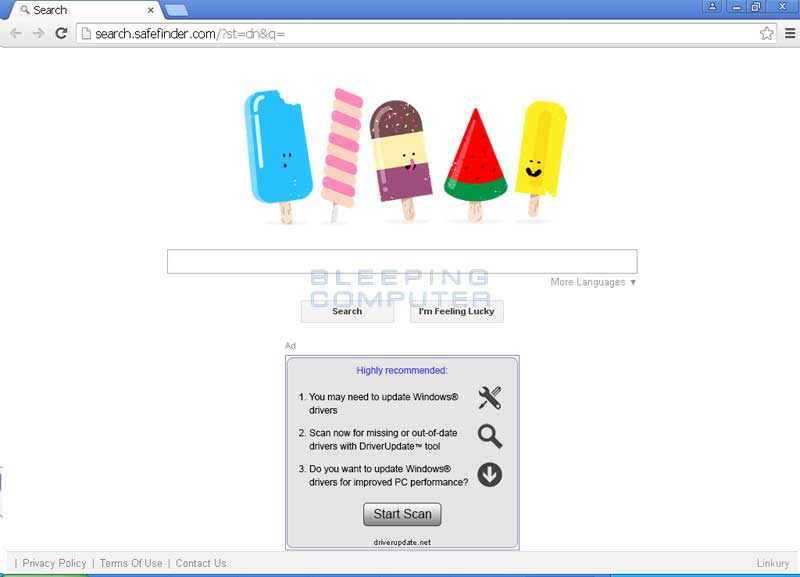

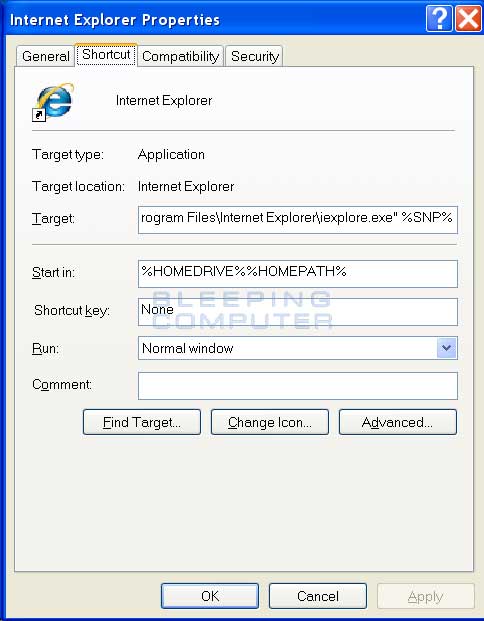
When installed SafeFinder and Linkury will install a Windows service called SaveService that monitors your web browser's settings and changes them back to SafeFinder if you try to change them. This hijacker will also modify your browser's Windows shortcuts so that the search.safefinder.com home page is always opened when you click on them. You can see an example of a hijacked Internet Explorer shortcut below.
SafeFinder and Linkury are installed by free programs that you download from the Internet that did not adequately disclose that other software would be installed along with it. Therefore, it is important that you pay close attention to license agreements and installation screens when installing anything off of the Internet. If an installation screen offers you Custom or Advanced installation options, it is a good idea to select these as they will typically disclose what other 3rd party software will also be installed. Furthermore, If the license agreement or installation screens state that they are going to install a toolbar or other unwanted adware, it is advised that you immediately cancel the install and not use the free software.
Without a doubt the Linkury and SafeFinder browser hijackers are not programs you want on your computer. They provide no benefit to you and only makes it difficult to customize your web browser as you see fit. To remove these hijackers, please use the free removal guide below.
SafeFinder.com Removal Options
Self Help Guide
If you are uncomfortable making changes to your computer or following these steps, do not worry! Instead you can get free one-on-one help by asking in the forums.
- This removal process may appear overwhelming due to the amount of the steps and the various programs used. Please do not be concerned as it is only written this way to give you clear and easy instructions so that anyone can use this guide. Before using this guide, you should print out these instructions and close any open programs and files as your web browser will need to be closed and your computer rebooted later in this fix.
- As SafeFinder.com sometimes has a usable Uninstall entry that can be used to remove the program, we want to try that first. To do this, click on the Start button and then select Control
Panel.
- When in the Control Panel, double-click on one of the options below depending
on your version of Windows
- For Windows XP double-click on the Add or Remove Programs
icon.
- For Windows Vista, Windows 7, Windows 8, and Windows 10 double-click on the Uninstall
Program option.
- For Windows XP double-click on the Add or Remove Programs
icon.
- When the Add or Remove Programs or the Uninstall Program screen is displayed,
please scroll through the list of programs and double-click on each of the
entries listed in bold below to uninstall them.
SafeFinder
When you double-click on each of the above entries to uninstall them, please follow the default prompts and allow it to remove all files and all configuration information related to this program. If any of the programs ask you to reboot your computer, do not allow it to reboot until you have uninstalled all of the programs listed above. - When you are done, you can close the Control Panel screens.
- We want to terminate any other adware or malware processes that may be running by downloading and running Rkill. Rkill will search your computer for active malware processes and attempt to terminate them so that they wont interfere with the removal process. To do this, please
download RKill to your desktop from the following link.
RKill Download Link - (Download page will open in a new tab or browser window.)
When at the download page, click on the Download Now button labeled iExplore.exe. When you are prompted where to save it, please save it on your desktop. - Once it is downloaded, double-click on the iExplore.exe
icon in order to automatically attempt to stop any processes associated with
SafeFinder.com
and other malware. Please be patient while the program looks for various
malware programs and ends them. When it has finished, the black window will
automatically close and a log file will open. Please review the log file and then close so you can continue with the next step. If you have problems running RKill, you can download the other renamed versions
of RKill from the rkill
download page. All of the files are renamed copies of RKill, which you
can try instead. Please note that the download page will open in a new browser
window or tab.
Do not reboot your computer after running RKill as the malware programs will start again. - At this point you should download Malwarebytes Anti-Malware, or MBAM, to scan your computer for any any infections or adware that may be present. Please download Malwarebytes from the following
location and save it to your desktop:
Malwarebytes Anti-Malware Download Link (Download page will open in a new window) - Once downloaded, close all programs and Windows on your computer, including
this one.
- Double-click on the icon on your desktop named mb3-setup-1878.1878-3.0.6.1469.exe.
This will start the installation of MBAM onto your computer.
- When the installation begins, keep following the prompts in order to continue
with the installation process. Do not make any changes to default settings
and when the program has finished installing, make sure you leave Launch
Malwarebytes Anti-Malware checked. Then click on the Finish button. If MalwareBytes prompts you to reboot, please do not do so.
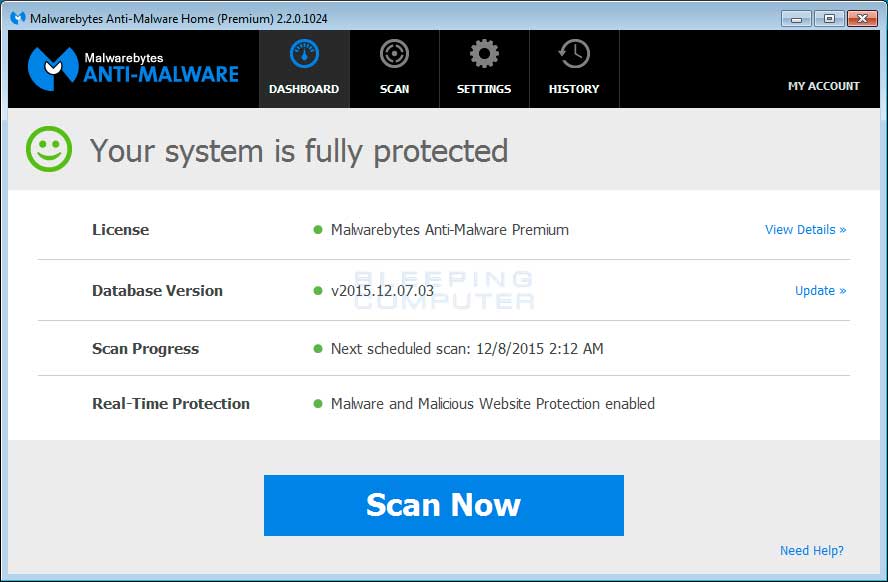
- MBAM will now start and you will be at the main screen as shown below.

Please click on the Scan Now button to start the scan. If there is an update available for Malwarebytes it will automatically download and install it before performing the scan. - MBAM will now start scanning your computer for malware. This process can
take quite a while, so we suggest you do something else and periodically
check on the status of the scan to see when it is finished.
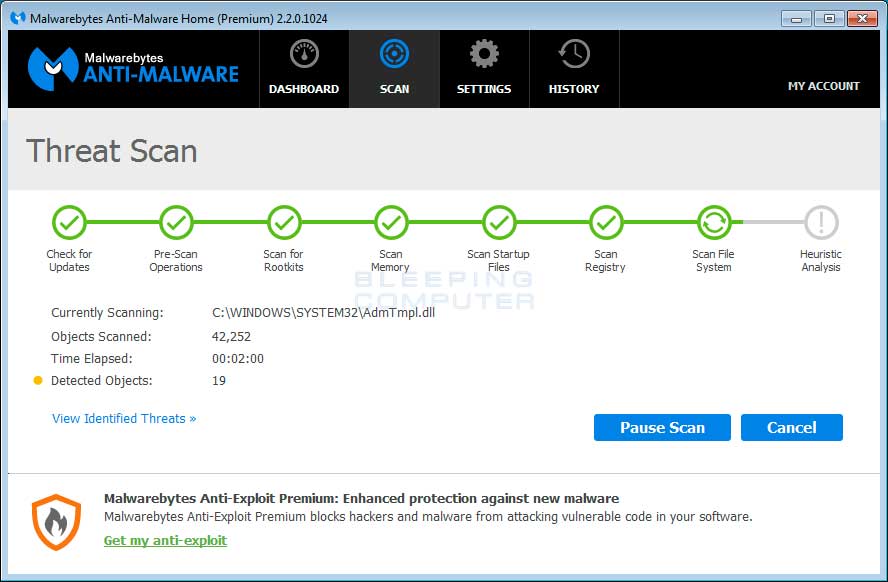
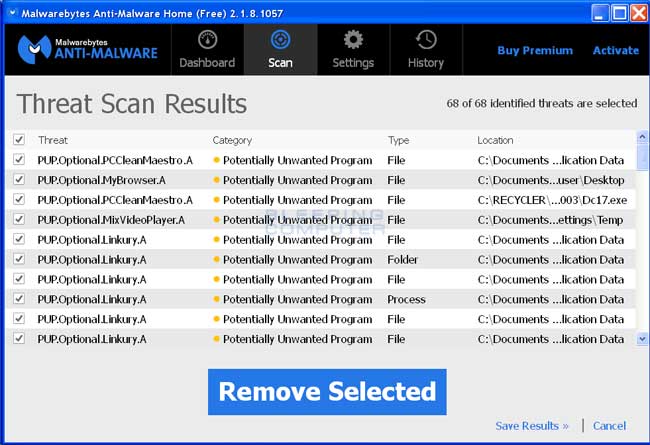
- When MBAM is finished scanning it will display a screen that displays any malware that it has detected. Please note that the infections found may be different
than what is shown in the image below due to the guide being updated for newer versions of MBAM.
You should now click on the Remove Selected button to remove all the seleted malware. MBAM will now delete all of the files and registry keys and add them to the programs quarantine. When removing the files, MBAM may require a reboot in order to remove some of them. If it displays a message stating that it needs to reboot, please allow it to do so. Once your computer has rebooted, and you are logged in, please continue with the rest of the steps. - You can now exit the MBAM program.
- As final cleanup step, please download AdwCleaner and save it to your desktop. AdwCleaner will scan your computer for adware programs that may have been installed on your computer without your knowledge. You can download AdwCleaner from the following URL:
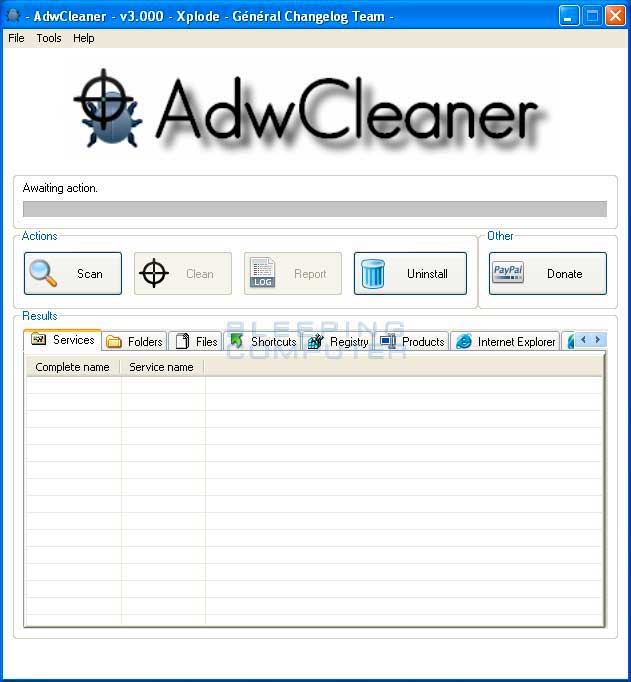
https://www.bleepingcomputer.com/download/adwcleaner/ - When AdwCleaner has finished downloading, please double-click on the AdwCleaner.exe icon that now appears on your desktop. Once you double-click on the icon the AdwCleaner program will open and you will be presented with its start screen as shown below. If Windows prompts you as to whether or not you wish to run AdwCleaner, please allow it to run.
- Now click on the Scan button in AdwCleaner. The program will now start to search for known adware programs that may be installed on your computer. When it has finished it will display all of the items it has found in Results section of the screen above. Please look through the results and try to determine if the programs that are listed contain ones that you do not want installed. If you find programs that you need to keep, then uncheck the entries associated with them.
For most people, the contents of the Results section may appear confusing or as gibberish. Unless you see a program name that you know should not be removed, please continue with the next step. - To remove the adware programs that were detected in the previous step, please click on the Clean button on the AdwCleaner screen. AdwCleaner will now prompt you to save any open files or data as the program will need to reboot the computer. Please do so and then click on the OK button. AdwCleaner will now delete all detected adware from your computer. When it is done it will display an alert that explains what PUPs (Potentially Unwanted Programs) and Adware are. Please read through this information and then press the OK button. You will now be presented with an alert that states AdwCleaner needs to reboot your computer.
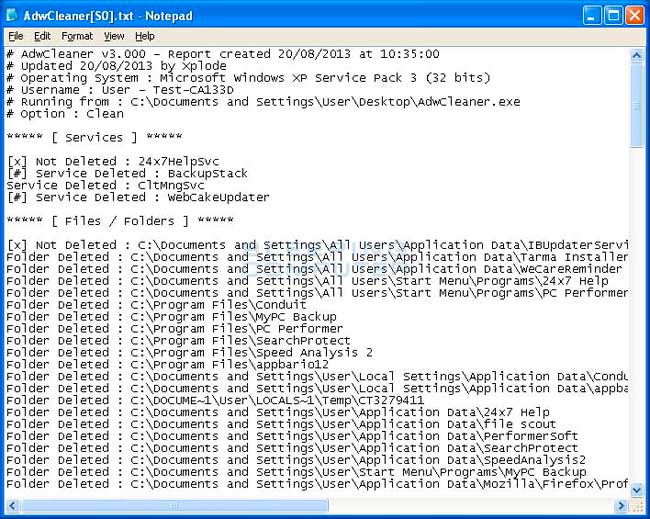
Please click on the OK button to let AdwCleaner reboot your computer. - When your computer reboots and you are logged in, AdwCleaner will automatically open a log file that contains the files, registry keys, and programs that were removed from your computer.
Please review this log file and then close the Notepad Window. - Unfortunately,
SafeFinder.com
also hijacks your web browser shortcuts so that the
SafeFinder.com
home page will open when you start your web browser in a certain way. To fix these shortcuts you need to use a program called Shortcut Cleaner. Please download and save Shortcut Cleaner to your desktop using the following link:
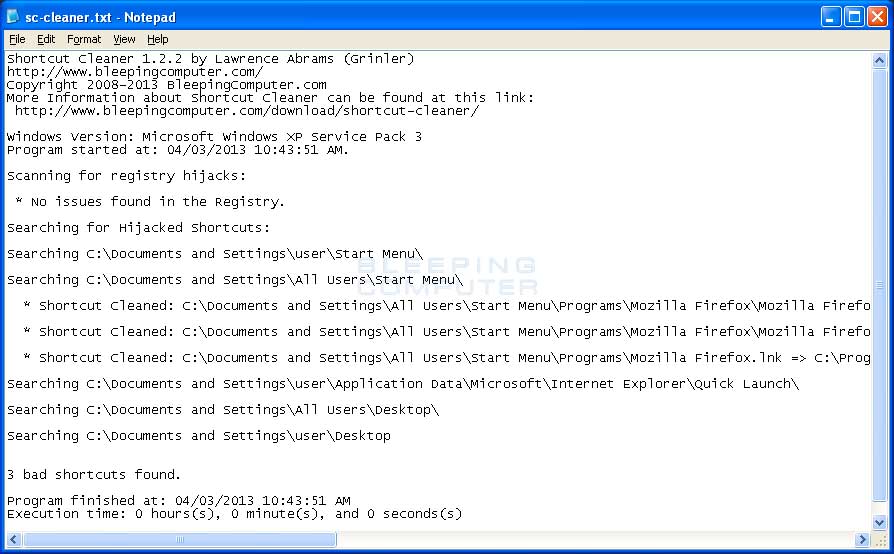
https://www.bleepingcomputer.com/download/shortcut-cleaner/ - Once the program has been downloaded, please double-click on the sc-cleaner.exe icon that will now be on your desktop. If Windows prompts you as to whether or not you wish to run Shortcut Cleaner, please allow it to run. Once the program starts, it will scan your computer for hijacked shortcuts and clean them. When it has finished it will display a log file that contains a list of all Windows shortcuts that were hijacked and disinfected.
After reviewing this log file, please close the Notepad window. -
Linkury
can be stubborn to get rid of without fully resetting your web browsers. For each web browser that you have installed, please follow the appropriate instructions below on how to reset your browser to factory defaults. Please note that this method will remove all add-ons, extensions, toolbars and other customizations but will leave your bookmarks and favorites intact.
In order to remove SafeFinder.com completely you will need to reset Chrome back to its initial settings. Doing these steps will erase all configuration information from Chrome such as your home page, tab settings, saved form information, browsing history, and cookies. This process will also disable any installed extensions. All of your bookmarks, though, will be preserved.
To reset Chrome, open the program and click on the Chrome menu button (
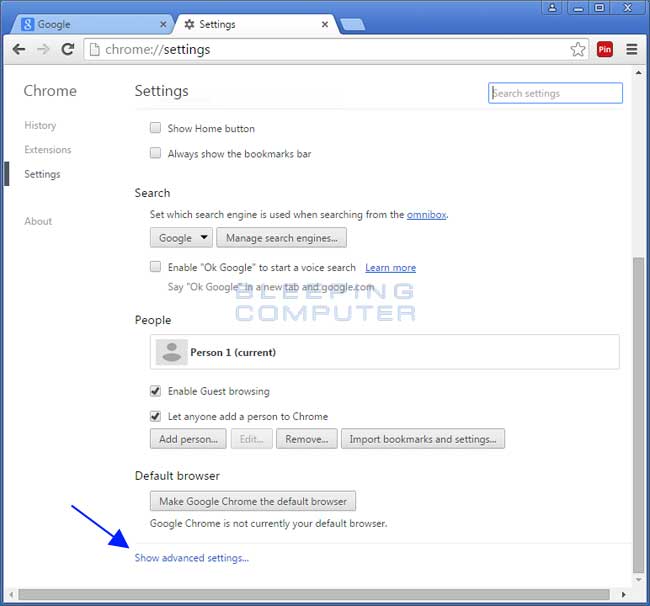
) in the top right-hand corner of the window. This will open the main menu for Chrome as shown below.Now click on the menu option labeled Settings as shown by the arrow in the picture above, which will open the basic settings screen. Scroll down to the very bottom and you will see a Show advanced settings... option as shown in the image below.
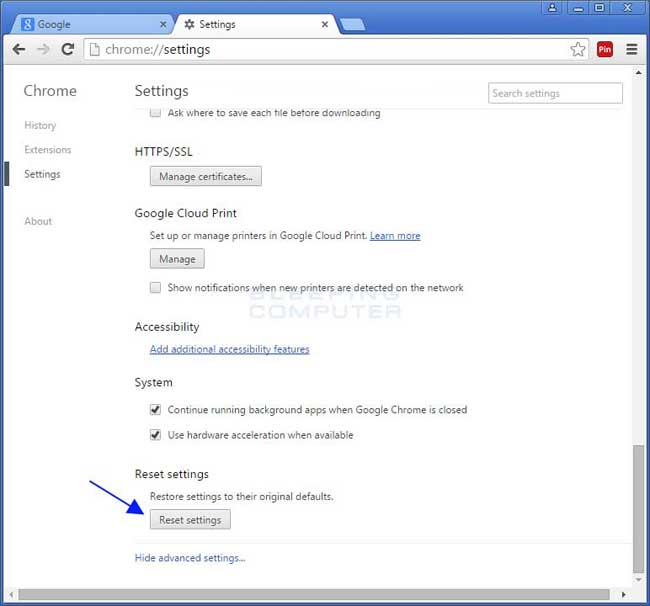
Click on the Show advanced settings... option to open the advanced settings screen. Scroll to the very bottom until you see the reset button as shown in the image below.
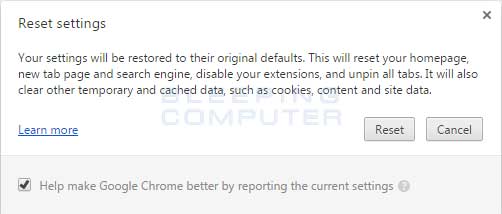
Now click on the Reset settings button as shown in the image above. Chrome will now open a confirmation dialog asking if you are sure you wish to reset your browser.
To reset Chrome, click on the Reset button. Chrome will now erase all your personal data, browsing history, and disable all installed extensions. Your bookmarks, though, will remain intact and still be accessible. You can now close the Settings tab and continue with the rest of the instructions.In order to remove SafeFinder.com completely you will need to reset Internet Explorer back to its initial settings. Doing these steps will erase all configuration information from Internet Explorer such as your home page, saved form information, browsing history, and cookies. This process will also disable any installed toolbars and add-ons. All of your bookmarks, though, will be preserved.
To reset Internet Explorer, open the program and click on the Internet Explorer menu button (
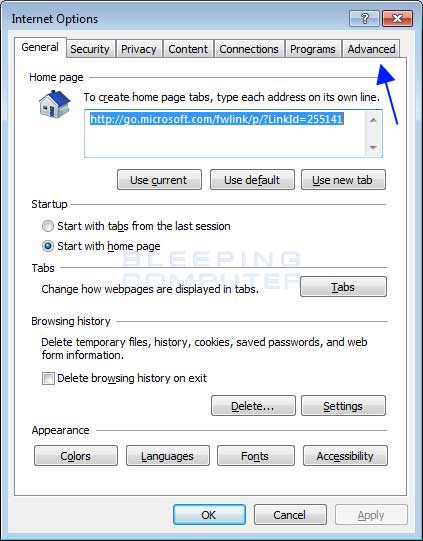
) in the top right-hand corner of the window. This will open the main menu for Internet Explorer as shown below.Now click on the menu option labeled Internet options as shown by the arrow in the picture above, which will open the Internet Options screen.
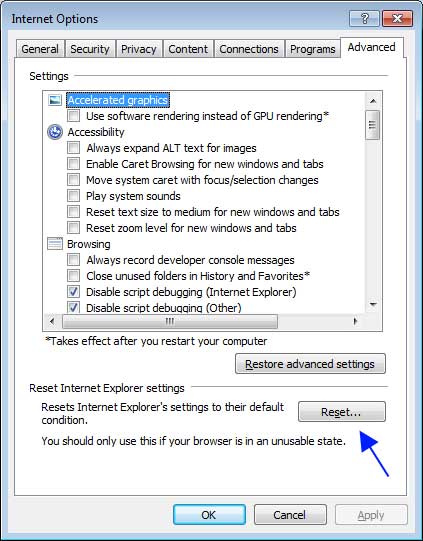
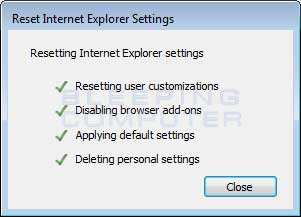
Now click on the Advanced tab as shown in the image above. This will open the Advanced Settings screen.Now click on the Reset... button as shown in the image above. Internet Explorer will now open a confirmation dialog asking you to confirm that you wish to reset your browser.
In the reset dialog shown above, please put a check mark in Delete personal settings and then click on the Reset button. Internet Explorer will now erase all your personal data, browsing history, and disable all add-ons and toolbars. Your favorites, though, will remain intact and still be accessible.Once the Reset process has been completed, click on the Close button. You will now be prompted to restart Internet Explorer to complete the reset. Once you have restarted Internet Explorer, you can continue with the rest of the instructions.
In order to remove SafeFinder.com completely you will need to refresh Firefox back to its initial settings. It does this by removing all add-ons and personalized configuration settings. All of your bookmarks, though, will be preserved.
To reset Firefox, open the program and click on the Firefox menu
button () in the top right-hand corner of the window. This will open the main menu for Firefox as shown below.Now click on the question mark button (
) as indicated by the arrow in the image above. This will open up the Firefox help menu.
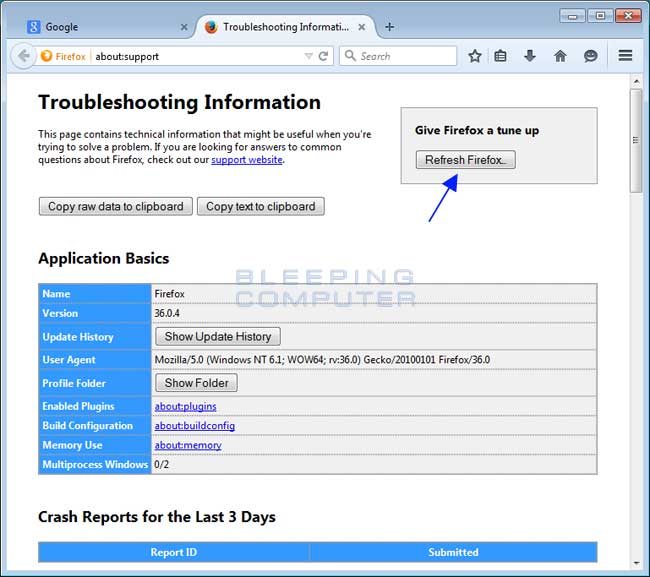
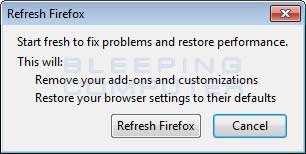
Next click on the Troubleshooting Information option as indicated by the arrow in the image above. This will bring you to a Troubleshooting page.To begin the refresh process click on the Refresh Firefox.. button. When you do this a confirmation will be shown asking if you wish to perform a Firefox refresh.
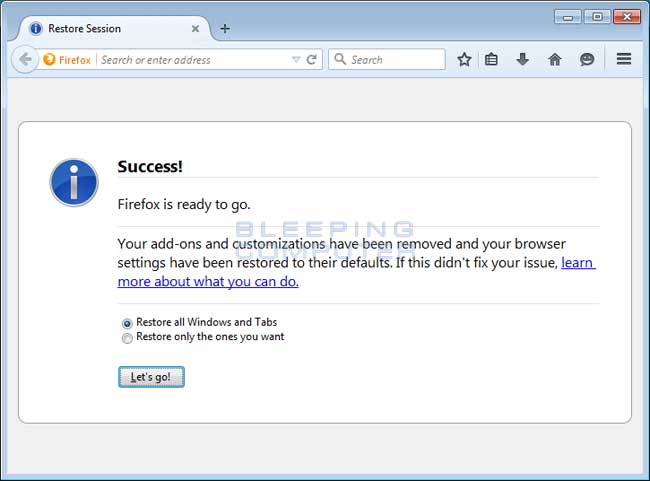
To refresh Firefox, click on the Refresh Firefox button. When the refresh process is finished you will be shown an Import window that will automatically close. When that closes, Firefox will be open and state that it has been refreshed.You can now click on the Let's go! button to start using Firefox again.
In order to completely remove SafeFinder.com you will need to reset Safari back to its initial settings. Doing these steps will erase all configuration information from Safari such as your Top Sites, saved form information, browsing history, and cookies. This process will not erase your bookmarks or extensions, which will still be available after you reset Safari.
To reset Safari, open the program and click on the gear (
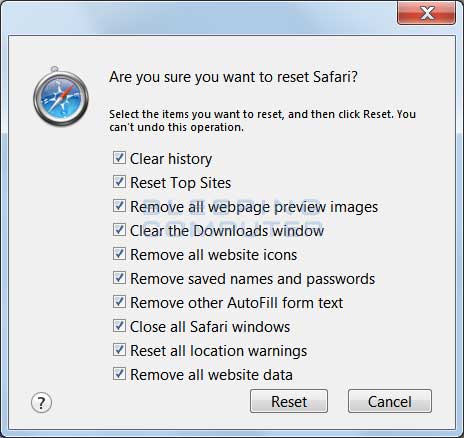
) in the top right-hand corner of the window. This will open the main menu for Safari as shown below.Now click on the menu option labeled Reset Safari as shown by the arrow in the picture above. This will open a window that allows you to select all the items you wish to reset.
Keep the check marks in each option and then click on the Reset button. Safari will delete all of your personal data and then open a blank page, which means the process has finished.It is important to note that this process does not delete your Bookmarks or any installed Safari Extensions. If you wish to remove your Safari Extensions as well, you can download this batch file, which will reset Safari and elete all installed extensions, while still retaining your bookmarks.
- As many malware and unwanted programs are installed through vulnerabilities found
in out-dated and insecure programs, it is strongly suggested that you use
Secunia PSI to scan for vulnerable programs on your computer. A tutorial on
how to use Secunia PSI to scan for vulnerable programs can be found here:
How to detect vulnerable and out-dated programs using Secunia Personal Software Inspector

 ) in the top right-hand corner of the window. This will open the main menu for Chrome as shown below.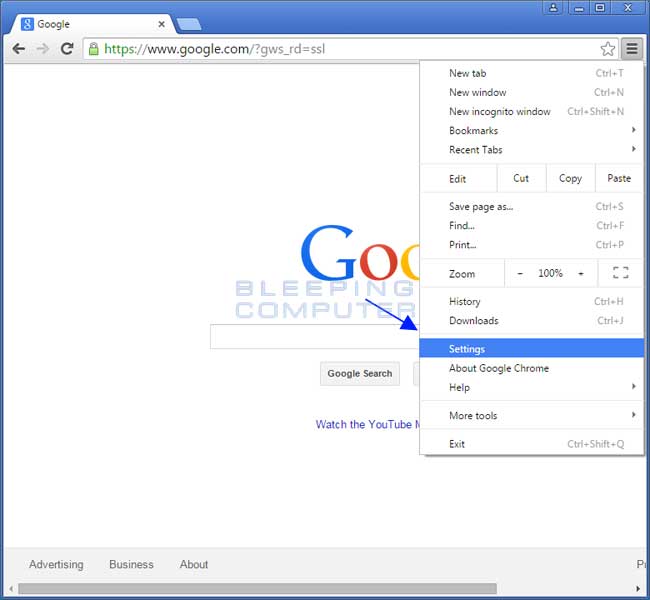
 ) in the top right-hand corner of the window. This will open the main menu for Internet Explorer as shown below.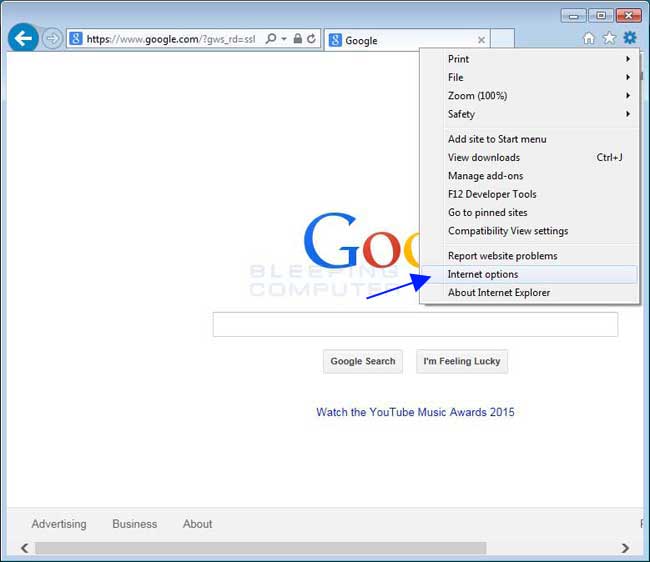

 ) in the top right-hand corner of the window. This will open the main menu for Firefox as shown below.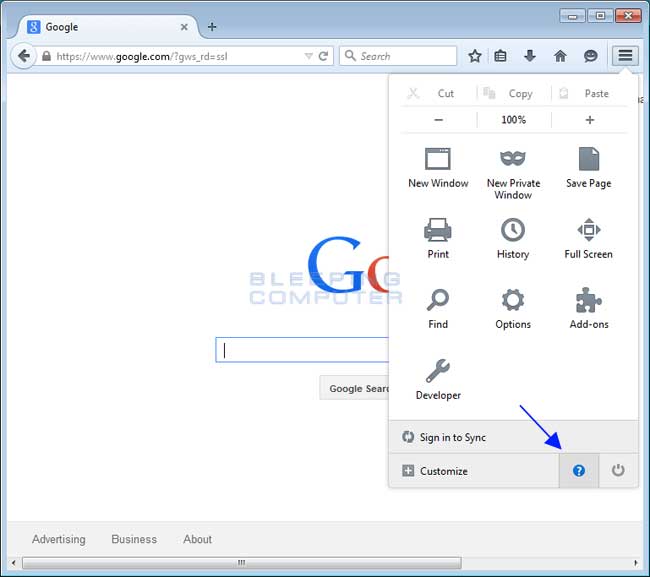
 ) as indicated by the arrow in the image above. This will open up the Firefox help menu.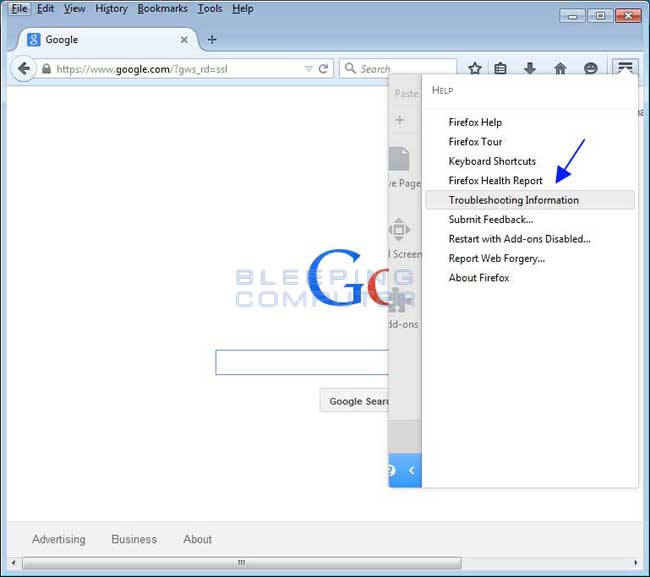
 ) in the top right-hand corner of the window. This will open the main menu for Safari as shown below.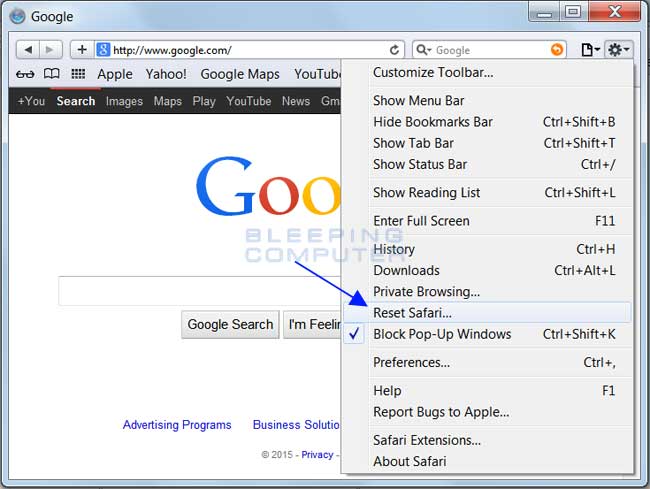
Your computer should now be free of the Linkury program. If your current anti-virus solution let this infection through, you may want to consider purchasing the PRO version of Malwarebytes Anti-Malware to protect against these types of threats in the future.