
Table of Contents
- 1 Introduction
- 2 How to use Malwarebytes Anti-Malware
- 3 Troubleshoot Malwarebytes Anti-Malware
Introduction
As you may have noticed, MalwareBytes or MBAM, is used in a lot of our removal guides. We do this for no reason other than the fact that the program simply works well and that we can count on it to remove what it says it can. It is updated constantly throughout the day and has excellent protection on all the new malware that comes out. With that said, we feel that MalwareBytes is an important tool to have as part of your computer's security arsenal. One of the program's nicest features is that it is free and easy to use. For those, who may want more advanced features you can purchase the commercial full version to get real-time protection that will protect you from being infected in the first place. Please note that if you use the link to purchase the program, BleepingComputer.com will generate a commission from the sale.
The guide below will walk you through installing, configuring, and scanning your computer with Malwarebytes Anti-Malware.
How to use Malwarebytes Anti-Malware
Print out these instructions as we will need to close every window that is open later in the fix.

Once downloaded, close all programs and Windows on your computer, including this one.
Double-click on the icon on your desktop named mb3-setup-1878.1878-3.3.1.2183.exe. This will start the installation of MBAM onto your computer.
When the installation begins, keep following the prompts in order to continue with the installation process. Do not make any changes to default settings and when the program has finished installing, make sure you leave Launch Malwarebytes Anti-Malware checked. Then click on the Finish button. If MalwareBytes prompts you to reboot, please do not do so.
MBAM will now start and you will be at the main screen as shown below.
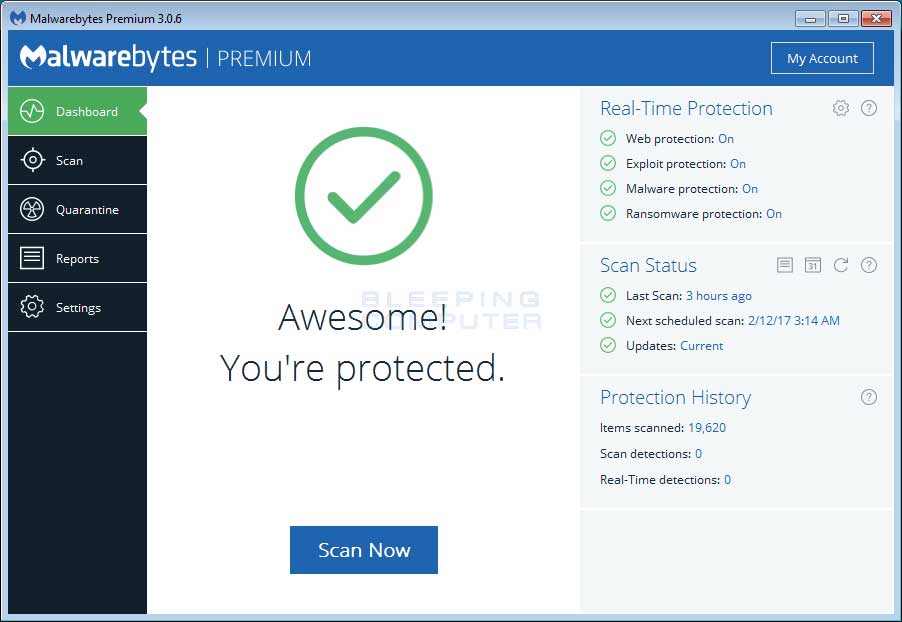
We now need to enable rootkit scanning to detect the largest amount of malware and unwanted programs that is possible with MalwareBytes. To do this, click on the Settings button on the left side of the screen and you will be brought to the general settings section.
Now click on the Protection tab at the top of the screen. You will now be shown the settings MalwareBytes will use when scanning your computer.
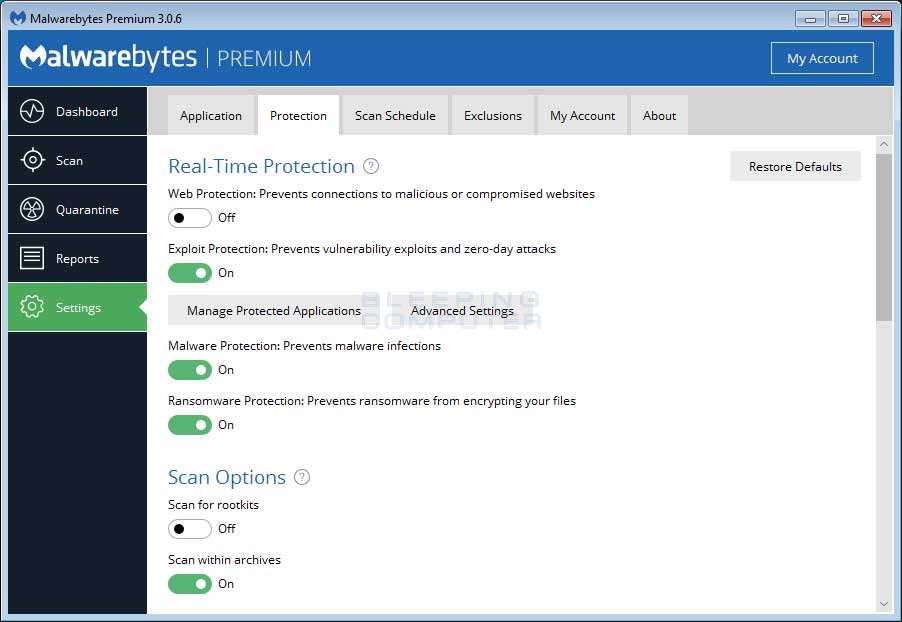
At this screen, please enable the Scan for rootkits setting by clicking on the toggle switch so it turns green.
Now that you have enabled rootkit scanning, click on the Scan button to go to the scan screen.
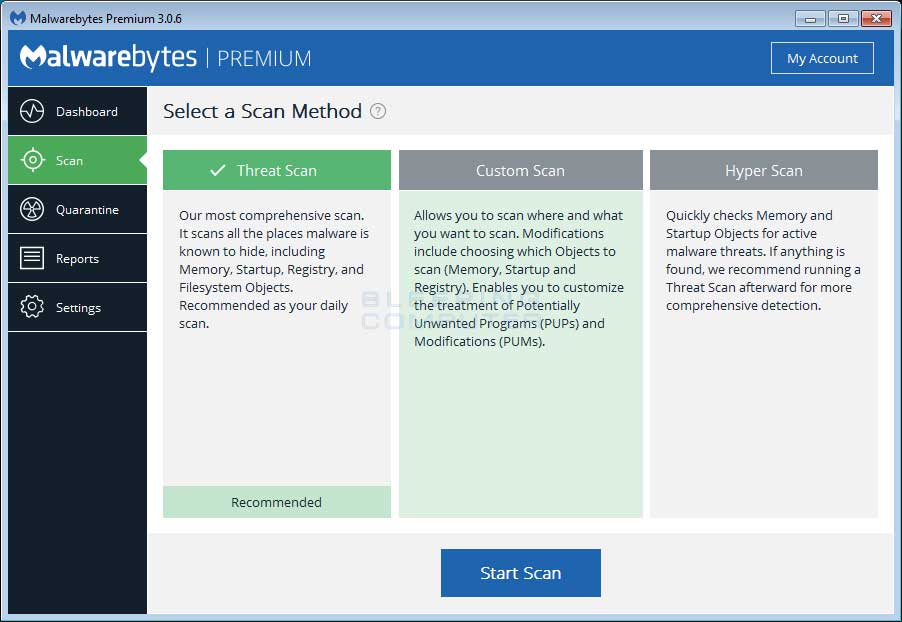
Make sure Threat Scan is selected and then click on the Start Scan button. If there is an update available for Malwarebytes it will automatically download and install it before performing the scan.
MBAM will now start scanning your computer for malware. This process can take quite a while, so we suggest you do something else and periodically check on the status of the scan to see when it is finished.
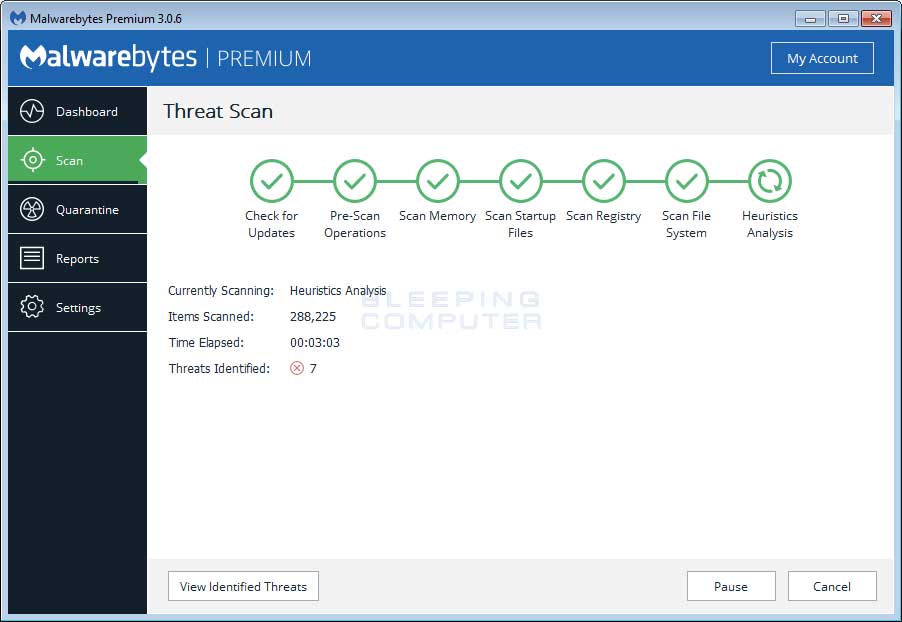
When MBAM is finished scanning it will display a screen that displays any malware, adware, or potentially unwanted programs that it has detected. Please note that the items found may be different than what is shown in the image below due to the guide being updated for newer versions of MBAM.
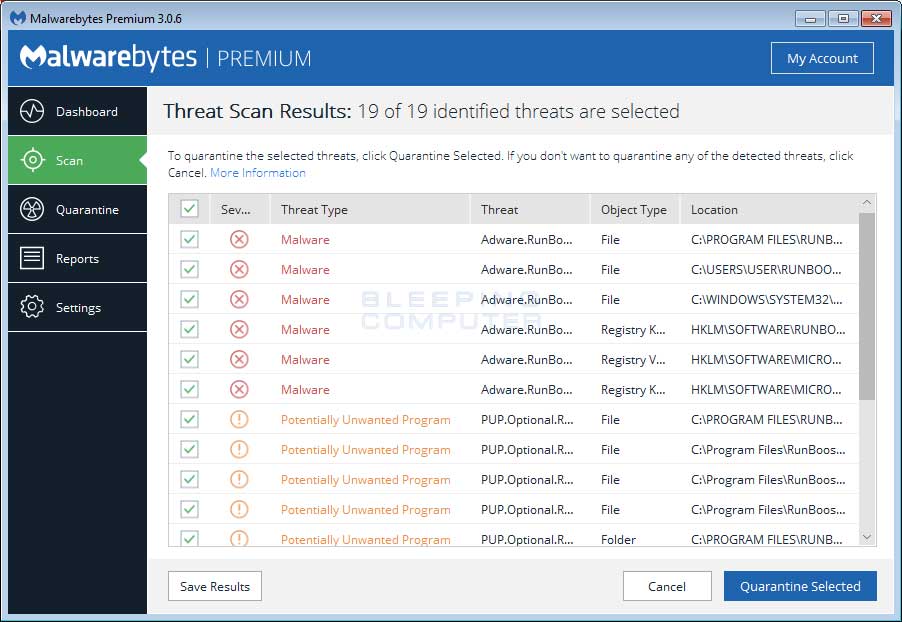
You should now click on the Remove Selected button to remove all the selected items. MBAM will now delete all of the files and registry keys and add them to the programs quarantine. When removing the files, MBAM may require a reboot in order to remove some of them. If it displays a message stating that it needs to reboot, please allow it to do so. Once your computer has rebooted, and you are logged in, please continue with the rest of the steps.
You can now exit the MBAM program.
Hopefully your computer should now be clean of any infections that may have been present. If your current anti-virus solution let this infection through, you may want to consider purchasing the PRO version of Malwarebytes Anti-Malware to protect against these types of threats in the future. In full disclosure, though we make a commission if you purchase the product through the previous link, we still strongly recommend it as its a great program.
Troubleshoot Malwarebytes Anti-Malware
Below are some common errors you may run into when attempting to use Malwarebytes' Anti-Malware.
Malwarebytes' setup program closes when you attempt to install it.
If you attempt to install Malwarebytes' and the setup program automatically closes then there is a good chance that you have an infection that is trying to stop the program from installing. To get around this, try renaming mbam-setup.exe to other names like:
- mbam-setup.com
- iexplore.exe
- explorer.exe
- userinit.exe
- winlogon.exe
After each rename, try and run the program again. If that does not work, then you may want to download and run Rkill to terminate the malware processes that are stopping you.

Malwarebytes wont start
If you attempt to run Malwarebytes' and it does not start then there is a good chance that you have an infection that is trying to stop the program from running. To get around this, try renaming C:\program files\Malwarebytes Anti-Malware\mbam.exe to other names like:
- mbam.com
- iexplore.exe
- explorer.exe
- userinit.exe
- winlogon.exe
After each rename, try and run mbam.exe again. If that does not work, then you may to download and run Rkill to terminate the malware processes that are stopping you.
Error 732 when trying to update Malwarebytes' Anti-Malware
If you receive an Error 732 when trying to update MBAM it could be because you do not currently have an Internet connection or a malware has changed your connection settings so that you are using a proxy server. To make sure your connection has not been set to use a proxy server, please do the following steps:
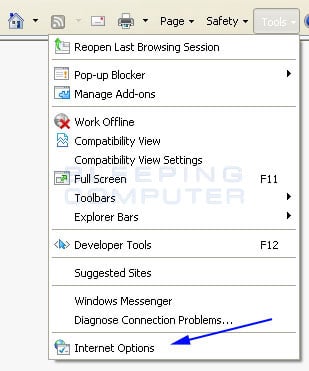
- Please start Internet Explorer, and when the program is open, click on the
Tools menu and then select Internet Options
as shown in the image below.

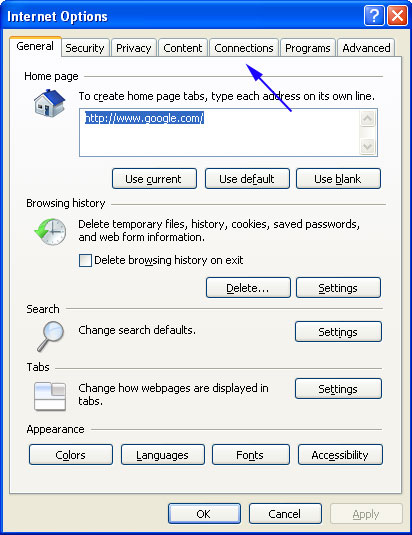
- You should now be in the Internet Options screen as shown in the image below.Now click on the Connections tab as designated by the blue arrow above.
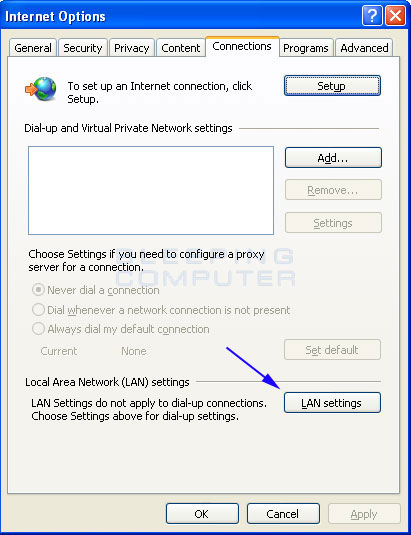
- You will now be at the Connections tab as shown by the image below. Now click on the Lan Settings button as designated by the blue arrow above.
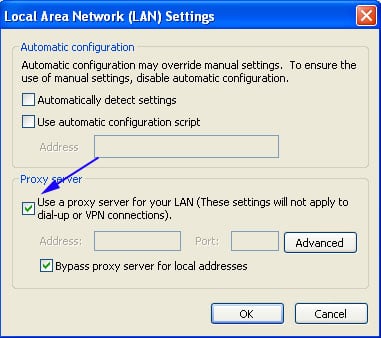
- You will now be at the Local Area Network (LAN) settings screen as shown
by the image below. Under the Proxy Server section, please uncheck the checkbox labeled Use a proxy server for your LAN. Then press the OK button to close this screen. Then press the OK button to close the Internet Options screen. Now that you have disabled the proxy server you will be able to browse the web again with Internet Explorer.
Now try and update MBAM again.
How to manually update Malwarebytes' Malware Definitions
Malware may sometimes block Malwarebytes from updating its definitions in order to protect itself. If you are having issues updating and have already tried disabling any proxy servers, you can instead update the definitions manually. To do this simply copy the following files onto a USB key from a working computer that has MBAM installed and transfer them to the infected one.
Windows XP and 2000:
C:\Documents and Settings\All Users\Application Data\Malwarebytes\Malwarebytes Anti-Malware\rules.ref
C:\Documents and Settings\All Users\Application Data\Malwarebytes\Malwarebytes Anti-Malware\actions.ref
C:\Documents and Settings\All Users\Application Data\Malwarebytes\Malwarebytes Anti-Malware\swissarmy.ref
C:\Documents and Settings\All Users\Application Data\Malwarebytes\Malwarebytes Anti-Malware\Configuration\database.confWindows Vista and Windows 7:
C:\ProgramData\Malwarebytes\Malwarebytes' Anti-Malware\rules.ref
C:\ProgramData\Malwarebytes\Malwarebytes' Anti-Malware\actions.ref
C:\ProgramData\Malwarebytes\Malwarebytes' Anti-Malware\swissarmy.ref
C:\ProgramData\Malwarebytes\Malwarebytes' Anti-Malware\Configuration\database.conf
Once the above files are copied onto a USB key, please copy them to the same folders on the infected computer.
If you do not have another computer available, then you can download a self-installing rules file from the following URL. Please note that this method will install definitions that are older than the latest ones:
Using Rkill to terminate infection processes that
may be stopping MBAM from running
If all of these steps do not work, then you can download, or copy from a clean computer, the Rkill program and run it on the infected computer. Rkill will then try and terminate the infections that may be stopping you from installing MalwareBytes'. You can download Rkill and renamed versions from the following download link:
When downloading Rkill, I suggest you download and try the iExplore.exe version first. Once Rkill runs, it will create a log of what applications were terminated. You can then attempt to start the installation of MalwareBytes or start the program again.
For more detailed troubleshooting information, please see this topic at the Malwarebytes' site.