

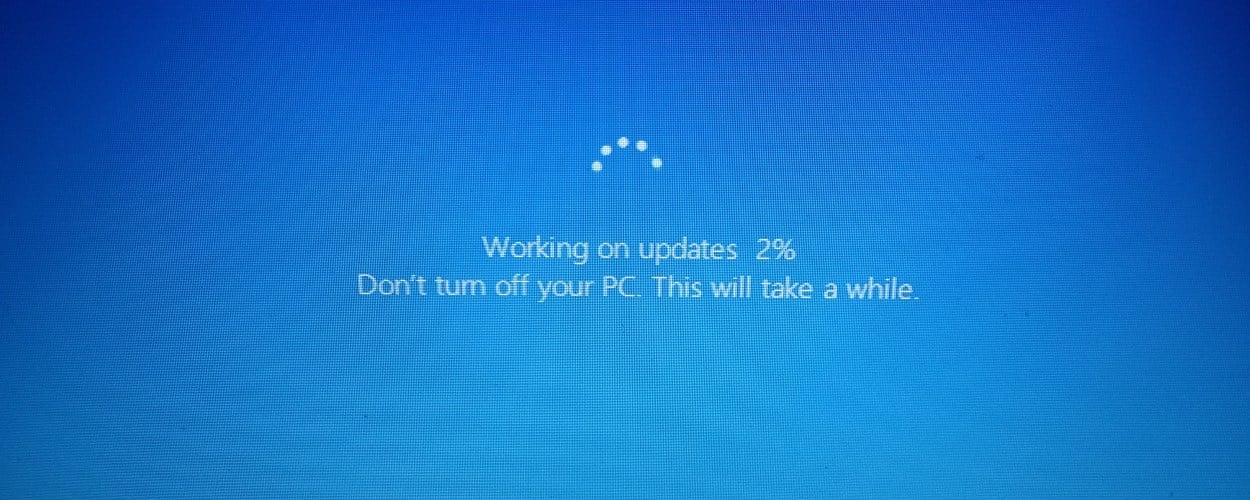
When installing new updates via Windows Update or the Microsoft Store, Windows 10 can consume all of the available Internet bandwidth. A Windows 10 feature can allow you to specify how much Internet bandwidth these update processes can use so that it does not affect other programs.
With Windows updates ranging in sizes between 200MB and 500MB and feature updates, like the upcoming May 2020 Update, potentially being over 2GB, downloading them on slow or metered connections can quickly utilize all of a network's available Internet bandwidth.
The use of all the bandwidth will also cause other programs, such as browsers and games, to not work as well.
The good news is that since the Fall Creators Update (Windows 10 1709), a Delivery Optimization feature allows you to specify a percentage of the available bandwidth that Windows Update and the Microsoft Store will use when installing updates.
How to limit the bandwidth used by Windows Update
To limit the bandwidth used by Windows Updates in Windows 10, Windows Store and other Microsoft products, follow these steps:
- Open Settings.
- Head to Update & Security > Windows Update
- On the Windows Update page, click on 'Advanced options'.
- Scroll to the bottom of the page and click on 'Delivery Optimization'.
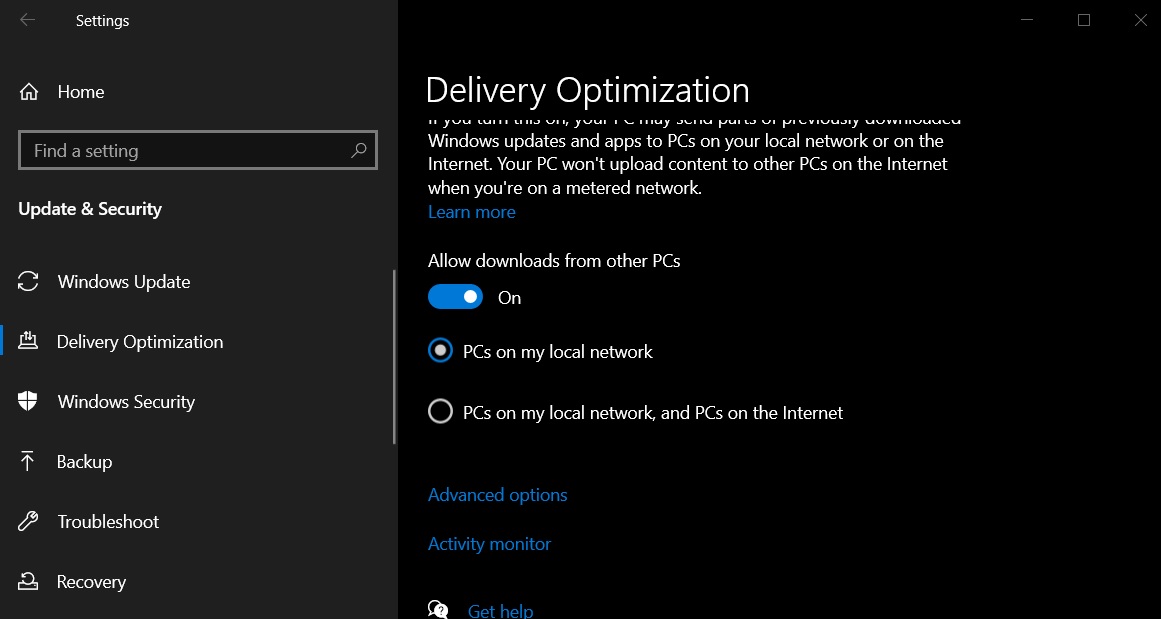
- Now that you are in the Delivery Optimization settings page, click on the 'Advanced options' again, as shown below.
- In the Delivery Optimization's advanced options page, put a checkmark in the “Limit how much bandwidth is used for downloading updates in the background” and “Limit how much bandwidth is used for downloading updates in the foreground”.
While the first option limits the bandwidth usage for Windows Update, the second option is for foreground activities such as Microsoft Store.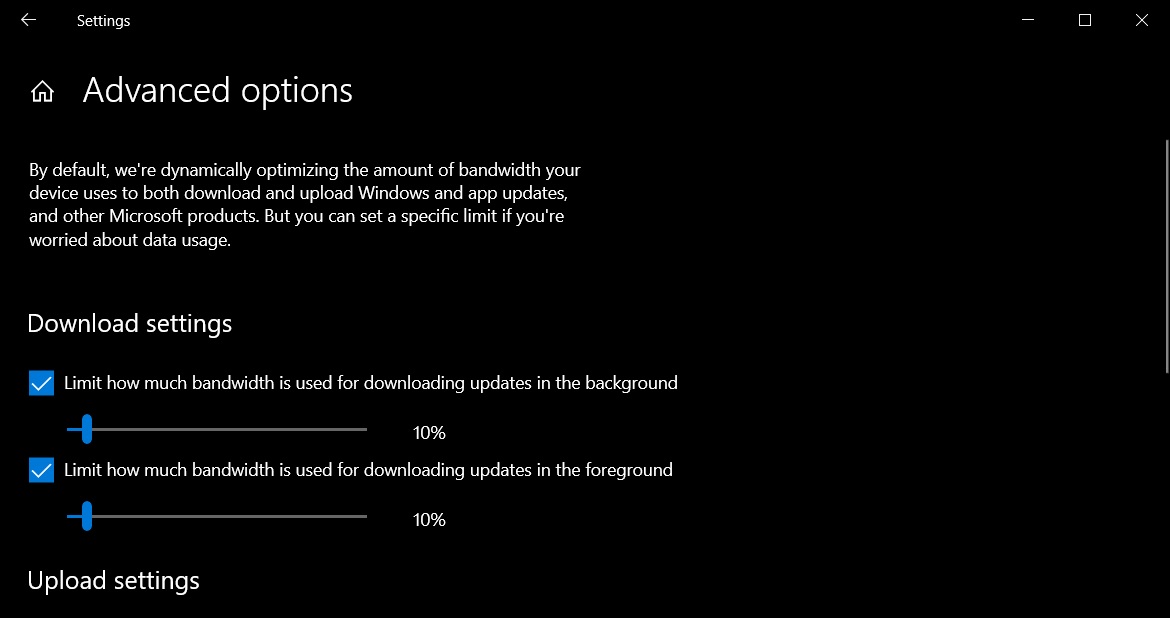
-
Drag the slider to set a limit as a percentage that you want to allocate to Windows Update and updates through the Microsoft Store.
For example, if you select 10%, only 10% of the available Internet bandwidth will be used for Windows Update-related activities. -
Once you select the amount of bandwidth you wish to allocate, you can close the settings window.
With this setting enabled, when Windows 10 performs an update, it will only use the specified amount of bandwidth and thus allow other applications to continue using the Internet without issues.
It should be noted that decreasing the bandwidth available for updates will also cause these updates to download slower and for the update process to take longer.
Absolute bandwidth limits coming in Windows 10 2004
Windows 10 2004 is being released at the end of the month, and with it are updated Delivery Optimization settings that allow you to specify the exact amount of bandwidth that can be used for update processes.
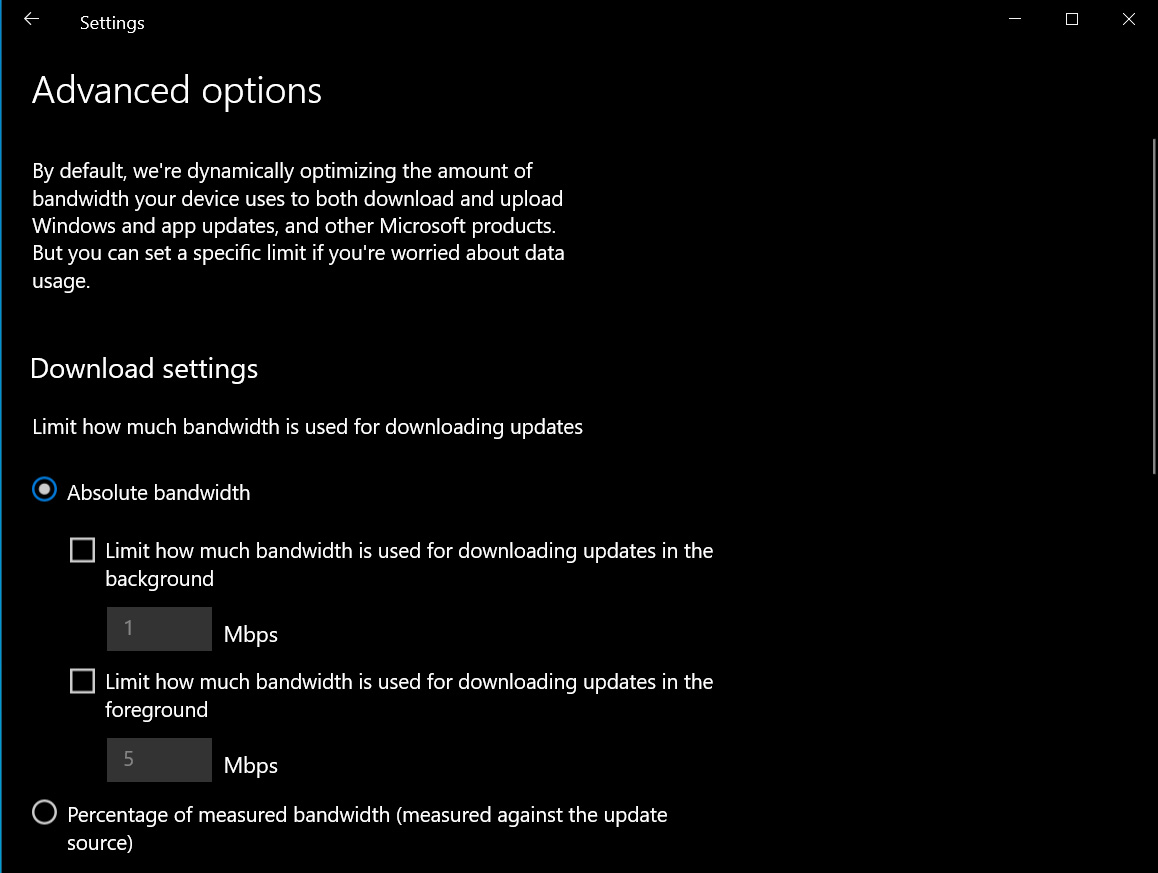
Using this new feature, Windows 10 users will be able to choose between a specific number of Mbps that can be used or select a limit as a percentage.

Red Report 2026: Why Ransomware Encryption Dropped 38%
Malware is getting smarter. The Red Report 2026 reveals how new threats use math to detect sandboxes and hide in plain sight.
Download our analysis of 1.1 million malicious samples to uncover the top 10 techniques and see if your security stack is blinded.









Comments
APlusBruce - 5 years ago
it's about time they added this. Nice post Mayank!